
![[keyword]](https://smartwealthnews.com/wp-content/uploads/2026/09/How-to-use-the-Zapier-ChatGPT-integration.png "How to use the Zapier ChatGPT integration")
OpenAI is rolling out new models all the time, and you can see the improvements and power even in a quick back-and-forth with ChatGPT. But as much as we all love shooting the breeze with an AI chatbot, the real question is how you can put the AI models to use in your work.
All of ChatGPT’s state-of-the-art models are available in Zapier. That means you can add ChatGPT-powered steps to your existing workflows, or securely access and take action in 9,000+ apps directly from ChatGPT, without ever leaving the chat window.
Here’s how it works.
Table of contents:
Add ChatGPT’s brain to your existing workflows (AI by Zapier)
Zapier is built for automating complex workflows, and sometimes those workflows can benefit from AI reasoning. AI by Zapier lets you drop a ChatGPT step right into your workflow wherever it makes sense, without using your own OpenAI account.
That means AI only shows up when it’s actually useful. If you’re routing a form submission to a spreadsheet, for example, deterministic automation can handle it—you don’t need to burn tokens on work that doesn’t need AI. But when you need to generate a follow-up email from a sales call transcript, extract action items from a meeting note, or categorize an inbound support request, that’s when you bring ChatGPT into the flow.
Here’s an example: say your team logs new support tickets in Airtable whenever a customer emails in. Instead of triaging every one manually, you build a Zap that triggers on new Airtable records, sends the ticket text to a ChatGPT model with a prompt like “Classify this ticket by issue type and assign a priority level,” then filters for high priority tickets and sends them to the support team in Slack. ChatGPT only fires when there’s a ticket to classify and prioritize—everything else runs the same way every time.
You also stay in full control of the ChatGPT step: tune your prompt, attach knowledge sources, enable tool calling, and test until the output is exactly what you need.
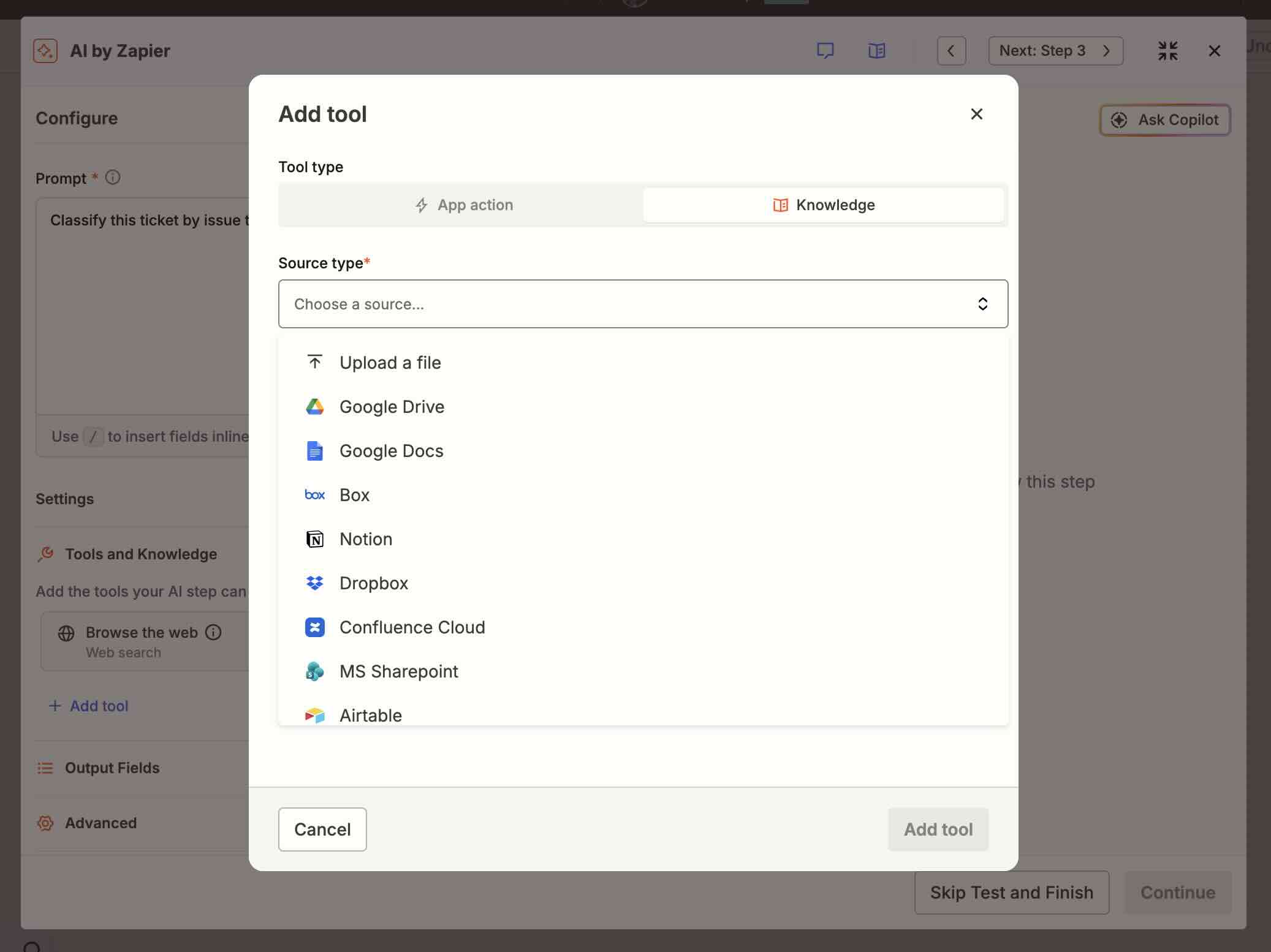
Plus, you get to use whatever ChatGPT model you want. Select your model from a dropdown in the visual workflow editor, and the cost comes out of your Zapier task count, which means no tokens and no separate OpenAI bill. In some cases, an AI step uses just one task, like any other step on Zapier. Advanced models use either three or five tasks—but you still aren’t burning through your own tokens.
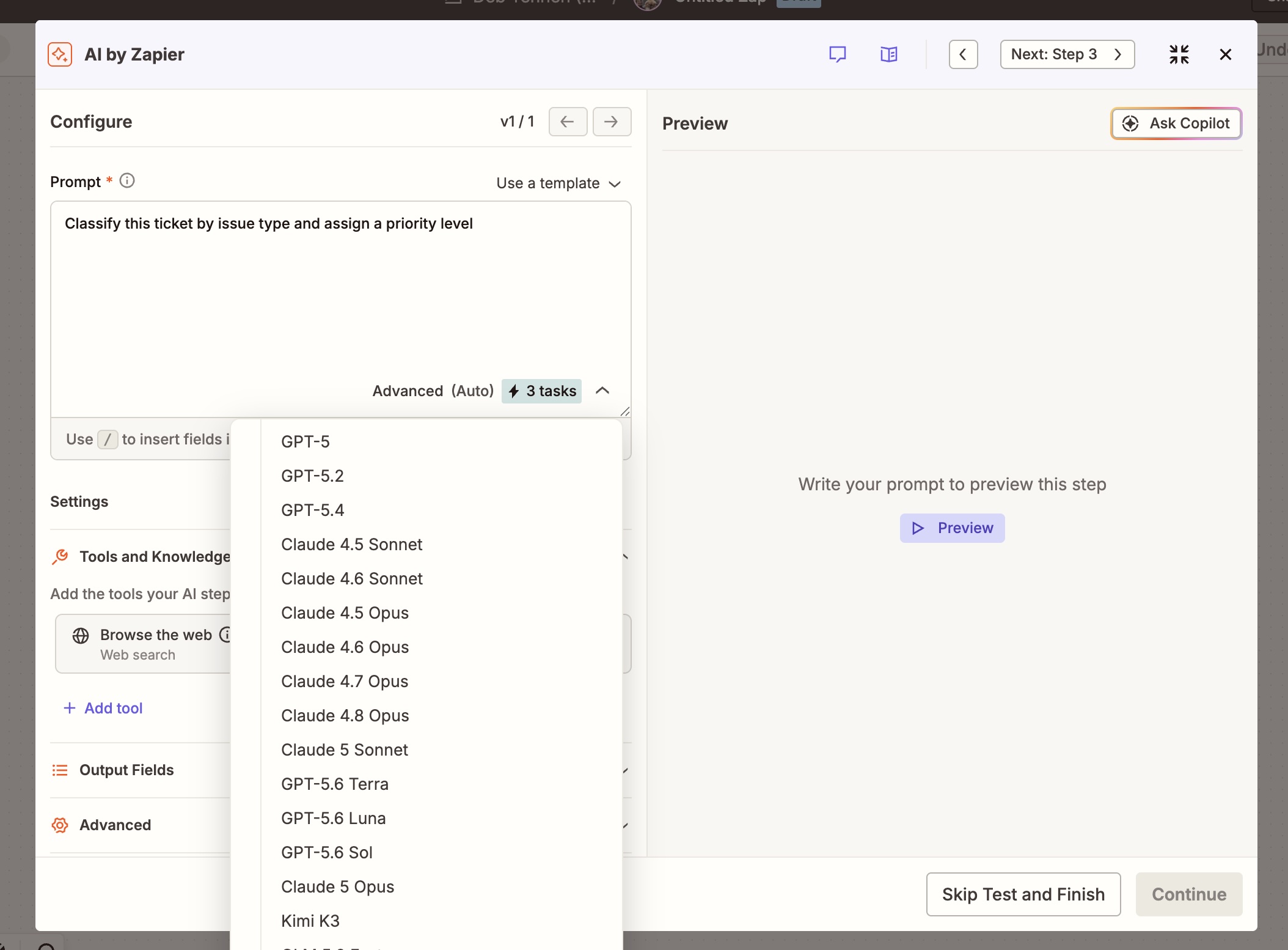
Plus, if you decide the OpenAI model isn’t working the way you want, you can swap it for any other model you want—from OpenAI or another provider—without rebuilding the workflow.
Here’s a quick look at the OpenAI models currently available on AI by Zapier; every time a new model is released, it gets added to the lineup immediately. Of course, if you’d rather use your own API key to access models like GPT-6 Astra, you can do that too with BYOK.
-
GPT-5.6 Sol
-
GPT-5.6 Luna
-
GPT-5.6 Terra
-
GPT-5.4
-
GPT-5.4 Nano
-
GPT-5.4 Mini
-
GPT-5.2
-
GPT-5 mini
-
GPT-5
-
GPT-4.1
-
GPT-4.1 mini
-
GPT 4.1 nano
-
GPT-4o
-
GPT-4o mini
-
03-mini
If you don’t know which model is best for your specific task, check out AutomationBench, Zapier’s benchmark for evaluating AI models on real business workflows. It’ll show you how all of the models compare on the tasks you’ll actually be running.
You can also use the dedicated Zapier ChatGPT integration to add a ChatGPT step to your workflow (using your own OpenAI account). But we recommend using AI by Zapier instead: it offers more powerful features with prompt testing, knowledge sources, and agentic tool calling. Plus, it allows you to skip the token cost and offers more flexibility since you can easily switch to another AI model without rebuilding your workflow.
ChatGPT automation use cases
Here’s a look at how you might use AI by Zapier to bring ChatGPT into your workflows:
-
Nurture and qualify leads. When a lead comes in through a form, a ChatGPT model (in AI by Zapier) can enrich incoming leads and score them, then Zapier will automatically add them to your CRM or nurture campaigns—so your team focuses only on the prospects most likely to convert.
-
Capture and track data. When a team member posts a project update or status note in a channel, AI by Zapier can extract the details from the message—like the project name, a summary of the status, and the owner—then add a new row to your tracking sheet with those details.
-
Generate and share content. When a new idea is posted in Slack, add a reacji, which will send it to AI by Zapier to draft social copy. Then Zapier can send the output directly to your social media management tool.
-
Summarize business information. When a sales call recording lands in your meeting tool, AI by Zapier can analyze the transcript using multi-step reasoning—extracting contacts discussed, commitments made, objections raised, next steps, and close signals—then cross-reference that against your existing deal record. The structured fields can be logged to your CRM, and a summary with recommended follow-up actions would be posted to your sales team’s channel.
-
Analyze surveys and feedback. When responses come in from your survey tool, send them to AI by Zapier for ChatGPT-powered sentiment analysis, theme extraction, or NPS categorization—then push the results to your database.
-
Escalate issues automatically. Have ChatGPT models read incoming support tickets or incident reports, assess urgency against a defined rubric, and trigger an alert in Slack for anything that crosses your severity threshold—without any manual triage.
Automate workflows directly from ChatGPT (Zapier MCP)
If your goal is to kick off automations directly from ChatGPT, Zapier MCP gets you there: it lets ChatGPT securely access and take action in 9,000+ apps.
Connect it once, tell ChatGPT which apps and actions you want it to have access to, and then set it to work across your entire tech stack—straight from the chat window or ChatGPT Work.
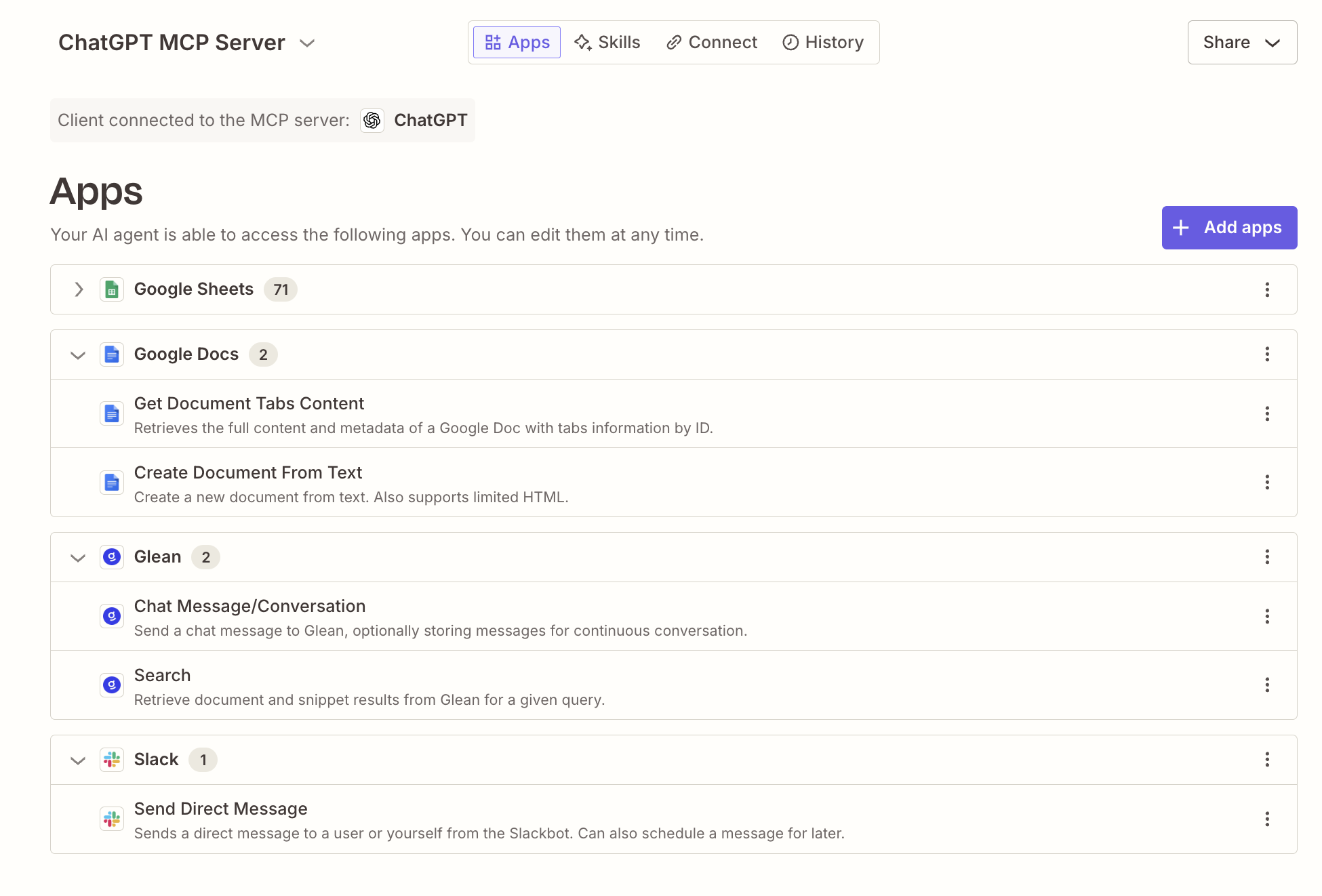
Here are a few things you might tell ChatGPT to do once Zapier MCP is connected:
-
“Pull my last five HubSpot opportunities, calculate weighted pipeline, and push a summary to Slack.”
-
“Catch me up on the emails I missed this morning, flag anything that needs my attention, and add those items to my Todoist task list.”
-
“Use Glean to check for trending topics at my company, then compare it against our editorial calendar in Airtable and flag any potential topics we’re not already covering.”
-
“Draft a follow-up email based on the last call note in Salesforce and create a calendar invite for next week.”
None of those require you to open a single other app—it all happens right in ChatGPT.
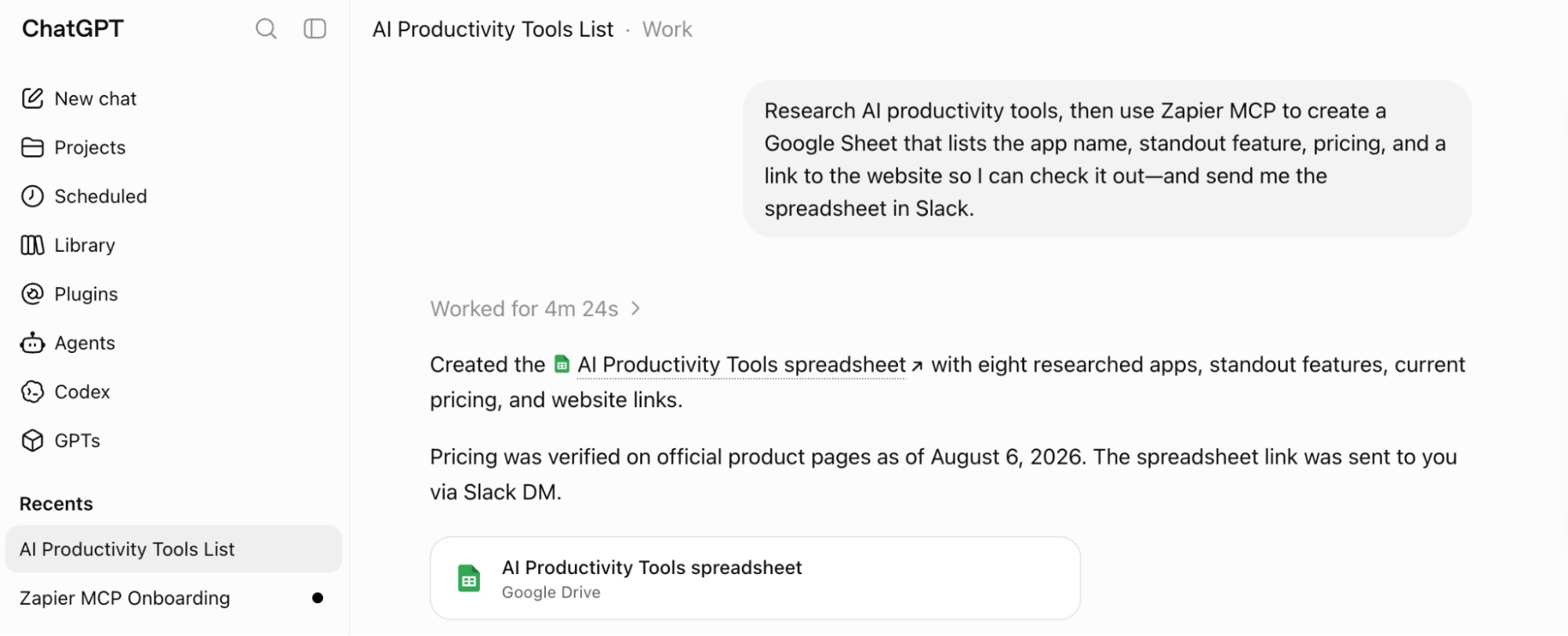
Zapier adds thousands of apps on top of native ChatGPT plugins, all governed from one place. And the governance carries over if you switch AI tools; Zapier MCP works with ChatGPT and any other agent harness that supports MCP, so you’re not rebuilding your permissions from scratch every time a new model is released or your team decides to switch AI tools.
ChatGPT automation FAQ
How do I automate ChatGPT responses using Zapier?
To automate ChatGPT responses using Zapier, you can install Zapier MCP. Once you do, ChatGPT can call on any of 9,000+ apps directly from the chat window. You define which apps and actions ChatGPT has access to when you configure the MCP server in Zapier, so you stay in control of what it can do. All you need to do is tell ChatGPT what you want to do—like “Pull my last five opportunities from HubSpot and send a summary to the team Slack channel,” and ChatGPT handles the whole sequence without you switching apps.
What are the best ways to automate ChatGPT with Zapier?
It depends what you want to automate. If you want to add AI reasoning to an existing workflow, use AI by Zapier, which pulls the same models that power ChatGPT into your automations. That means you only use AI where it’s necessary, and everything else stays deterministic. If you want to kick off automations directly from ChatGPT, use Zapier MCP, which gives ChatGPT governed access to 9,000+ apps.
Automate ChatGPT with Zapier
Whether you want work to run automatically in the background or on your command from your AI chat window, Zapier helps you bring the power of ChatGPT into governed workflows across your tech stack.
No matter which path fits how you work, the connection runs through Zapier’s managed authentication—so ChatGPT never has to ask for an API key, your credentials stay governed in one place, and every action runs through the same permissions you’d apply to any other part of your stack.
Related reading:
This article was originally published in May 2023 by Elena Alston. The most recent update was in September 2026.